The post The Accidental DBA (Day 17 of 30): Configuring Alerts for High Severity Problems appeared first on Glenn Berry.
]]>One necessary part of being a responsible, pro-active DBA is to try to configure your SQL Server instances in such a manner so they will be as reliable as possible. This begins with how you initially install and configure the operating system and SQL Server, and what you do over time to maintain and monitor your SQL Server instances. I previously wrote a three part series about how to provision a new SQL Server instance that is available on the SimpleTalk web site. Part One is here, Part Two is here, and Part Three is here. If you read and follow my recommendations in those three articles, you will have a very good installation and configuration foundation to build on going forward.
One subject that I touched on in Part Three of that series was how to use some T-SQL to quickly create SQL Server Agent Alerts for a number of critical error conditions. SQL Server Agent Alerts are often confused with SQL Server Agent job notifications, but they are actually quite different. SQL Server Agent job notifications allow you to send an e-mail or page to a SQL Server Operator when an Agent job fails, succeeds or completes. The most common usage is to send an e-mail to your SQL Server Operator (which can be an e-mail distribution list) whenever a SQL Server Agent job fails. You really should make sure each of your SQL Server Agent Jobs has a proper SQL Server Agent job notification so that someone in your organization knows whenever a SQL Server Agent job fails, so that the problem can be investigated and corrected. The Notification tab for a SQL Server Agent Job is shown in Figure 1.
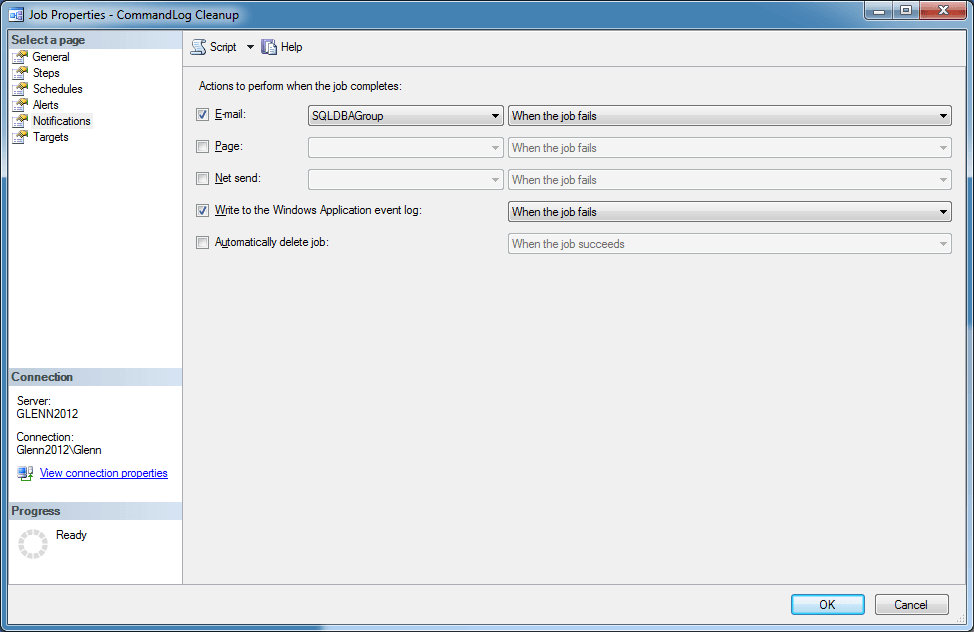
Figure 1: SQL Server Agent Job Notification Tab
While these Agent Job notifications are important, they are not the same thing as a SQL Server Agent Alert. A SQL Server Agent Alert will trigger an action (such as notifying an Operator by sending an e-mail) whenever certain errors occur or certain other performance conditions exist (that are detected from Windows Performance Monitor objects values or Windows Management Instrumentation (WMI) queries). You can also execute a SQL Server Agent Job in response to a SQL Server Agent Alert, in addition to simply notifying an Operator. This is much better than finding out about a problem by stumbling across it in the SQL Server Error Log or finding about it when it has led to some problem that is affecting your availability or data integrity. Figure 2 shows the General tab for a SQL Server Agent Alert. Figure 3 shows the Response tab for for a SQL Server Agent Alert.
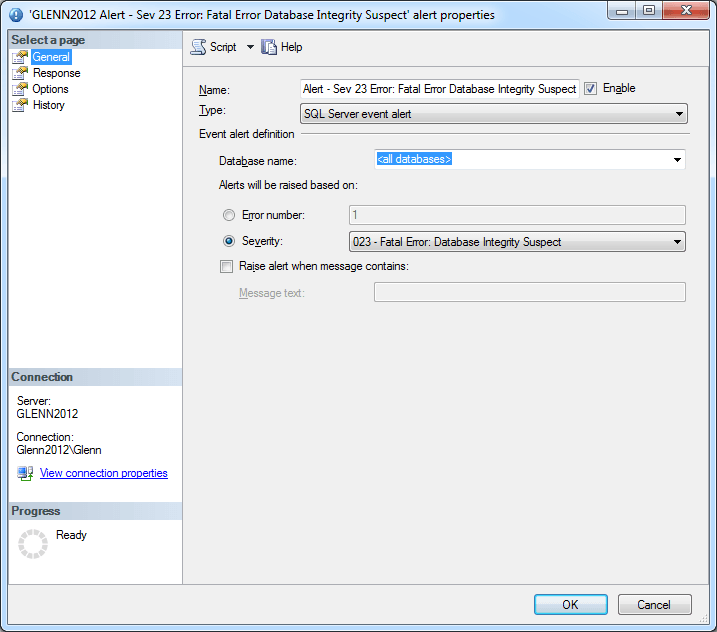
Figure 2: SQL Server Agent Alert General Tab
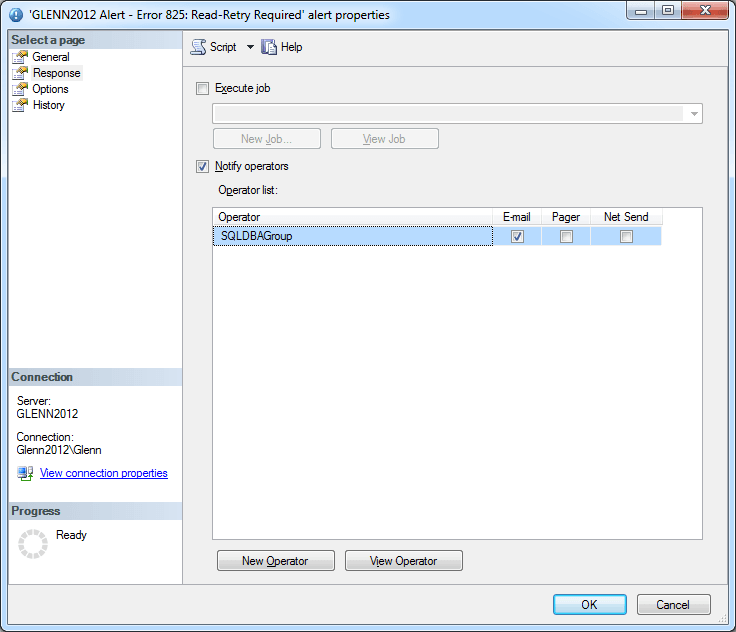
Figure 3: SQL Server Agent Alert Response Tab
Paul Randal previously wrote about the importance of creating SQL Server Agent Alerts. I wanted to make it even easier to create a set of very important SQL Server Agent Alerts by just running a relatively simple T-SQL script. The code below automatically picks up the server name and uses that as part of the alert name. It also uses variables for the operator name and for the alert category name. In this script, the delay between responses is set to 900 seconds, which is 15 minutes. That might be a little on the long side, but I did not want the operator to get spammed with e-mail alerts every couple of minutes. You can always adjust that value to whatever you see fit.
You need to make sure that you have a SQL Operator defined for your instance (and that you change the name of the operator in the script below to match your Operator name). You also need to make sure that you have Database Mail properly configured and enabled, so that you will actually get an e-mail when one of your SQL Server Agent Alerts is triggered.
-- Add important SQL Agent Alerts to your instance
-- Change the @OperatorName as needed

USE [msdb];
GO

-- Make sure you have an Agent Operator defined
-- Change @OperatorName as needed
DECLARE @OperatorName sysname = N'SQLDBAGroup';

-- Change @CategoryName as needed
DECLARE @CategoryName sysname = N'SQL Server Agent Alerts';

-- Add Alert Category if it does not exist
IF NOT EXISTS (SELECT *
               FROM msdb.dbo.syscategories
               WHERE category_class = 2  -- ALERT
               AND category_type = 3
               AND name = @CategoryName)
    BEGIN
        EXEC dbo.sp_add_category @class = N'ALERT', @type = N'NONE', @name = @CategoryName;
    END

-- Get the server name
DECLARE @ServerName sysname = (SELECT @@SERVERNAME);

-- Alert Names start with the name of the server
DECLARE @Sev19AlertName sysname = @ServerName + N' Alert - Sev 19 Error: Fatal Error in Resource';
DECLARE @Sev20AlertName sysname = @ServerName + N' Alert - Sev 20 Error: Fatal Error in Current Process';
DECLARE @Sev21AlertName sysname = @ServerName + N' Alert - Sev 21 Error: Fatal Error in Database Process';
DECLARE @Sev22AlertName sysname = @ServerName + N' Alert - Sev 22 Error Fatal Error: Table Integrity Suspect';
DECLARE @Sev23AlertName sysname = @ServerName + N' Alert - Sev 23 Error: Fatal Error Database Integrity Suspect';
DECLARE @Sev24AlertName sysname = @ServerName + N' Alert - Sev 24 Error: Fatal Hardware Error';
DECLARE @Sev25AlertName sysname = @ServerName + N' Alert - Sev 25 Error: Fatal Error';
DECLARE @Error825AlertName sysname = @ServerName + N' Alert - Error 825: Read-Retry Required';

-- Sev 19 Error: Fatal Error in Resource
IF NOT EXISTS (SELECT name FROM msdb.dbo.sysalerts WHERE name = @Sev19AlertName)
    EXEC msdb.dbo.sp_add_alert @name = @Sev19AlertName,
                  @message_id=0, @severity=19, @enabled=1,
                  @delay_between_responses=900, @include_event_description_in=1,
                  @category_name = @CategoryName,
                  @job_id=N'00000000-0000-0000-0000-000000000000';

-- Add a notification if it does not exist
IF NOT EXISTS(SELECT *
          FROM dbo.sysalerts AS sa
          INNER JOIN dbo.sysnotifications AS sn
          ON sa.id = sn.alert_id
          WHERE sa.name = @Sev19AlertName)
    BEGIN
        EXEC msdb.dbo.sp_add_notification @alert_name = @Sev19AlertName, @operator_name=@OperatorName, @notification_method = 1;
    END

-- Sev 20 Error: Fatal Error in Current Process
IF NOT EXISTS (SELECT name FROM msdb.dbo.sysalerts WHERE name = @Sev20AlertName)
    EXEC msdb.dbo.sp_add_alert @name = @Sev20AlertName,
                  @message_id=0, @severity=20, @enabled=1,
                  @delay_between_responses=900, @include_event_description_in=1,
                  @category_name = @CategoryName,
                  @job_id=N'00000000-0000-0000-0000-000000000000'

-- Add a notification if it does not exist
IF NOT EXISTS(SELECT *
          FROM dbo.sysalerts AS sa
          INNER JOIN dbo.sysnotifications AS sn
          ON sa.id = sn.alert_id
          WHERE sa.name = @Sev20AlertName)
    BEGIN
        EXEC msdb.dbo.sp_add_notification @alert_name = @Sev20AlertName, @operator_name=@OperatorName, @notification_method = 1;
    END

-- Sev 21 Error: Fatal Error in Database Process
IF NOT EXISTS (SELECT name FROM msdb.dbo.sysalerts WHERE name = @Sev21AlertName)
    EXEC msdb.dbo.sp_add_alert @name = @Sev21AlertName,
                  @message_id=0, @severity=21, @enabled=1,
                  @delay_between_responses=900, @include_event_description_in=1,
                  @category_name = @CategoryName,
                  @job_id=N'00000000-0000-0000-0000-000000000000';

-- Add a notification if it does not exist
IF NOT EXISTS(SELECT *
          FROM dbo.sysalerts AS sa
          INNER JOIN dbo.sysnotifications AS sn
          ON sa.id = sn.alert_id
          WHERE sa.name = @Sev21AlertName)
    BEGIN
        EXEC msdb.dbo.sp_add_notification @alert_name = @Sev21AlertName, @operator_name=@OperatorName, @notification_method = 1;
    END

-- Sev 22 Error: Fatal Error Table Integrity Suspect
IF NOT EXISTS (SELECT name FROM msdb.dbo.sysalerts WHERE name = @Sev22AlertName)
    EXEC msdb.dbo.sp_add_alert @name = @Sev22AlertName,
                  @message_id=0, @severity=22, @enabled=1,
                  @delay_between_responses=900, @include_event_description_in=1,
                  @category_name = @CategoryName,
                  @job_id=N'00000000-0000-0000-0000-000000000000';

-- Add a notification if it does not exist
IF NOT EXISTS(SELECT *
          FROM dbo.sysalerts AS sa
          INNER JOIN dbo.sysnotifications AS sn
          ON sa.id = sn.alert_id
          WHERE sa.name = @Sev22AlertName)
    BEGIN
        EXEC msdb.dbo.sp_add_notification @alert_name = @Sev22AlertName, @operator_name=@OperatorName, @notification_method = 1;
    END

-- Sev 23 Error: Fatal Error Database Integrity Suspect
IF NOT EXISTS (SELECT name FROM msdb.dbo.sysalerts WHERE name = @Sev23AlertName)
    EXEC msdb.dbo.sp_add_alert @name = @Sev23AlertName,
                  @message_id=0, @severity=23, @enabled=1,
                  @delay_between_responses=900, @include_event_description_in=1,
                  @category_name = @CategoryName,
                  @job_id=N'00000000-0000-0000-0000-000000000000';

-- Add a notification if it does not exist
IF NOT EXISTS(SELECT *
          FROM dbo.sysalerts AS sa
          INNER JOIN dbo.sysnotifications AS sn
          ON sa.id = sn.alert_id
          WHERE sa.name = @Sev23AlertName)
    BEGIN
        EXEC msdb.dbo.sp_add_notification @alert_name = @Sev23AlertName, @operator_name = @OperatorName, @notification_method = 1;
    END

-- Sev 24 Error: Fatal Hardware Error
IF NOT EXISTS (SELECT name FROM msdb.dbo.sysalerts WHERE name = @Sev24AlertName)
    EXEC msdb.dbo.sp_add_alert @name = @Sev24AlertName,
                  @message_id=0, @severity=24, @enabled=1,
                  @delay_between_responses=900, @include_event_description_in=1,
                  @category_name = @CategoryName,
                  @job_id=N'00000000-0000-0000-0000-000000000000';

-- Add a notification if it does not exist
IF NOT EXISTS(SELECT *
          FROM dbo.sysalerts AS sa
          INNER JOIN dbo.sysnotifications AS sn
          ON sa.id = sn.alert_id
          WHERE sa.name = @Sev24AlertName)
    BEGIN
        EXEC msdb.dbo.sp_add_notification @alert_name = @Sev24AlertName, @operator_name = @OperatorName, @notification_method = 1;
    END

-- Sev 25 Error: Fatal Error
IF NOT EXISTS (SELECT name FROM msdb.dbo.sysalerts WHERE name = @Sev25AlertName)
    EXEC msdb.dbo.sp_add_alert @name = @Sev25AlertName,
                  @message_id=0, @severity=25, @enabled=1,
                  @delay_between_responses=900, @include_event_description_in=1,
                  @category_name = @CategoryName,
                  @job_id=N'00000000-0000-0000-0000-000000000000';

-- Add a notification if it does not exist
IF NOT EXISTS(SELECT *
          FROM dbo.sysalerts AS sa
          INNER JOIN dbo.sysnotifications AS sn
          ON sa.id = sn.alert_id
          WHERE sa.name = @Sev25AlertName)
    BEGIN
        EXEC msdb.dbo.sp_add_notification @alert_name = @Sev25AlertName, @operator_name = @OperatorName, @notification_method = 1;
    END

-- Error 825: Read-Retry Required
IF NOT EXISTS (SELECT name FROM msdb.dbo.sysalerts WHERE name = @Error825AlertName)
    EXEC msdb.dbo.sp_add_alert @name = @Error825AlertName,
                  @message_id=825, @severity=0, @enabled=1,
                  @delay_between_responses=900, @include_event_description_in=1,
                  @category_name = @CategoryName,
                  @job_id=N'00000000-0000-0000-0000-000000000000';

-- Add a notification if it does not exist
IF NOT EXISTS(SELECT *
          FROM dbo.sysalerts AS sa
          INNER JOIN dbo.sysnotifications AS sn
          ON sa.id = sn.alert_id
          WHERE sa.name = @Error825AlertName)
    BEGIN
        EXEC msdb.dbo.sp_add_notification @alert_name = @Error825AlertName, @operator_name = @OperatorName, @notification_method = 1;
    END
GO
The post The Accidental DBA (Day 17 of 30): Configuring Alerts for High Severity Problems appeared first on Glenn Berry.
]]>The post The Accidental DBA (Day 4 of 30): SQL Server Installation and Configuration Best Practices appeared first on Glenn Berry.
]]>SQL Server 2012 is deceptively easy to install. You can pretty much click on the “Next” button a number of times, and you can get SQL Server 2012 installed without really having any idea what you are doing. SQL Server 2012 will run with all of the installation and configuration defaults, and depending on your workload, you may be perfectly fine for some time. On the other hand, this is somewhat like a ticking time bomb, waiting to blow up in the face of the unfortunate accidental DBA at the worst possible time.
If you have a more substantial workload or you just want to make sure that you have the best installation and configuration possible, you need to do some preparation work and planning before you install SQL Server 2012, and you need to make the correct choices during the installation process. You also need to make some key instance-level configuration changes after you are done installing and updating SQL Server 2012.
This begins with having an appropriate server and storage subsystem available. The exact details of your server and processor selection matter a great deal because of the core-based licensing in SQL Server 2012. Once you have the server and storage subsystem in place, and you have Windows Server 2012 installed, you want to make sure that the main system BIOS, all of the firmware, and all of the device drivers have been updated to the latest versions. You also want to make sure that Windows Server 2012 has been fully patched, using Microsoft Update (which is a superset of Windows Update).
In most environments, you are going to want to have a dedicated Windows domain account for each SQL Server service that you will be using, such as the Database Engine, SQL Server Agent, etc. These should be regular domain accounts with no special rights, since the SQL Server installation program will grant them the local rights that they need during the installation. Depending on your organization, getting these accounts created could take some time, but you will need them (along with their passwords) during the installation.
You also want to make sure that your hardware power management (in your BIOS) is either disabled or set to OS control. Along with this, you need to ensure that the Windows Power Plan is changed from the default of “Balanced” to the “High Performance” setting. Forgetting to make these changes is one of the most common mistakes that I see in the field, even among experienced database administrators. It is also very important to make sure that Intel Turbo Boost is enabled in the BIOS (which it usually is by default). Intel hyper-threading (HT) is somewhat more controversial. If you have an OLTP workload, I would always enable HT on newer processors (Nehalem and newer) unless you have done testing with your workload that shows that you are better off without HT (which will be very rare). With DW workloads, you may want to disable HT, but you really should do some testing with your workload before you decide.
You want to think about how you are going to configure your storage subsystem in terms of RAID levels, and the number and composition of logical drives that will be presented to Windows. This will be determined by how many drives you have available, your anticipated workload, your desired performance characteristics and your necessary drive space. After your logical drives have been configured and presented to Windows, you should test their performance, first with CrystalDiskMark, and then with SQLIO, to make sure you are getting the performance you expect. If you are using RAID controllers with dedicated hardware caches, you want to make sure that the cache policy is enabled so that the cache is actually being used.
You should also (in almost all cases) enable Windows Instant File Initialization (IFI) and Lock Pages in Memory (LPIM) by granting these rights to the SQL Server Service account. Once you have installed SQL Server 2012 you will want to get it fully patched with the latest Service Pack and Cumulative Update (CU). Installing SQL Server Cumulative Updates is also somewhat controversial, but I am a proponent. Especially with SQL Server 2012, many important issues have been corrected with CUs and Microsoft has even added new features though the CU process.
You should also set the instance-level Maximum Server memory setting to an appropriate value (especially if you have enabled LPIM), and you should enable the “Optimize for ad hoc workloads” instance-level setting. I also generally will start out with at least four tempdb data files, making sure they are the same size, with the same autogrowth increment. Finally, I will add Trace Flag (TF) 3226 as a startup parameter to disable the logging of successful database backup messages to the SQL Server Error log.
I wrote a three-part article series that goes into more detail on this subject last year:
I covered how to install, patch and configure SQL Server 2008 R2 in my book, SQL Server Hardware.
Our online training (Pluralsight) courses that can help you with this topic:
- SQL Server 2012: Installation and Configuration
- SQL Server: Installing and Configuring SQL Server 2016
- SQL Server: Upgrading and Migrating to SQL Server 2016
The post The Accidental DBA (Day 4 of 30): SQL Server Installation and Configuration Best Practices appeared first on Glenn Berry.
]]>The post The Accidental DBA (Day 2 of 30): Hardware Selection: Disk Configurations and RAID -> Performance not Capacity appeared first on Glenn Berry.
]]>One of the most common mistakes that I see people make as they configure a new database server is to have an improperly configured or simply inadequate storage subsystem for their intended database workload. It is not that unusual for someone to specify the components for a new server with high-end Intel processors and lots of physical RAM, but with only eight internal, 10K magnetic drives for their entire storage subsystem. This is a recipe for disaster, unless you have a very light workload. A little analogy that I like to use in presentations is when you go to a gym and see guys who only work on their upper body and don’t do any leg work. They end up looking ridiculous and are not really very strong, just as a database server will be crippled by an inadequate storage subsystem.
It is always better (from a performance perspective) to have a larger number of smaller drives in a disk array, rather than a smaller number of larger drives in a disk array. Each disk, whether it is a conventional magnetic drive or a solid state drive, has certain performance limits in terms of sequential throughput (MB/sec) and random Input/Output Operations per Second (IOPS). Having more drives in the array will increase the performance of the array, at least until you run into the limits of some other component in the storage subsystem, such as the RAID controller, HBA, or the PCI-E slot you are using.
It is far too easy to simply focus on how much disk space you need for the various types of database files, such as SQL Server data files, log files, tempdb files, and database backup files rather than concentrating on the required performance metrics for each of these types of database files. You need to consider how much sequential read and write performance you need (in terms of MB/sec), and how much random read and write performance you need (in terms of IOPS) for your workload for each of these database file types. You also need to think about your disk redundancy requirements and your available budget.
Thinking about all of this will help you and your storage administrator decide how to properly configure your disk subsystem to get the best performance and redundancy possible with your available resources. This is far preferable to simply calculating your disk space requirements, and asking for a certain amount of disk space.
There is a free and easy to use benchmark tool that you can use to quickly compare the performance of different types of disks and disk arrays. CrystalDiskMark, which is available from Crystal Dew World is a fairly well-known disk subsystem benchmark. You can select the number of test runs, desired file size, desired test file type, and which logical drive you want to test. It allows you to measure:
- Sequential read and write performance in megabytes/second
- Random read and write performance for a 512K block size
- Random read and write performance for a 4K block size
- Random read and write performance for a 4K block size with a queue depth of 32
There are other disk benchmarks such as SQLIO that will do a much more thorough job of benchmarking your disk subsystem, but they are a little more difficult to work with. Using CrystalDiskMark should be a supplement to other disk benchmarking that you do. I like to do my first round of testing on each logical drive using CrystalDiskMark before I do more detailed, time-consuming testing with SQLIO. You should test all of your logical drives with these tools before you install SQL Server. Figure 1 shows what the results from CrystalDiskMark look like.
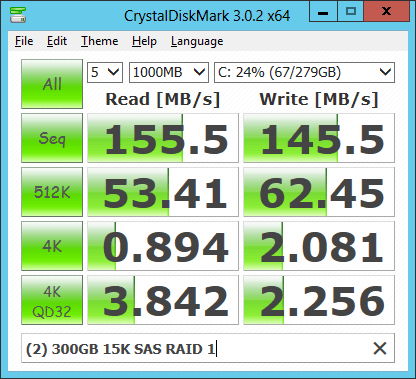
Figure 1: CrystalDiskMark Results for two 300GB 15K SAS drives in RAID 1
This shows you the performance characteristics for a two drive, RAID 1 array with 300GB, 15K rpm conventional magnetic drives. An array like this is commonly used for the system drive in a database server to get decent performance and to have some redundancy for the operating system and the SQL Server binaries (for a server that is not part of a fail-over cluster instance). As an accidental DBA, you need to think about your desired performance characteristics and your required redundancy levels as you decide how to lay out your physical and logical disk configuration. You have to think about the different types of database files, and how they will be used with your type of workload as you make these decisions. No matter how you decide to configure your disk subsystem, it is very important to test each logical drive with CrystalDiskMark and SQLIO before you install SQL Server, so that you don’t have any unpleasant surprises later!
Our online training (Pluralsight) courses that can help you with this topic:
- SQL Server: Improving Storage Subsystem Performance
- SQL Server: Evaluating and Sizing Hardware
- Understanding Server Hardware
The post The Accidental DBA (Day 2 of 30): Hardware Selection: Disk Configurations and RAID -> Performance not Capacity appeared first on Glenn Berry.
]]>The post Top 10 Learning Resources for Accidental DBAs appeared first on Glenn Berry.
]]>Luckily, there is a large and vibrant “SQL Server Community” that is more than willing to help each other out, both online and in person. There are many different ways to learn more about SQL Server, depending on what works for you. One of the first things you should do is get a free account on Twitter, and start using it. You should follow some SQL Server people, and start participating so you get to know people and they get to know you. You can use the #sqlhelp hash tag on Twitter to get expert help within minutes. You can post questions on the various SQL Server-related forums to get more detailed help that may take a little longer. As you use these resources, be polite, and try not to annoy people right off the bat. Saying please and thank you, and not arguing too much make a world of difference when it comes to getting help on Twitter and in the forums.
It is also a good idea to read a few blog posts related to SQL Server every day. You can use your favorite RSS reader to subscribe to a number of blogs and see what interests you. I think it is also valuable to buy a few books about SQL Server, and actually read them. There are also a number of different training resources, both online and in-person, that you can use to learn more about SQL Server. I have listed a few of these various resources below, to help get you started.
WeFollow – SQLServer (Good list of some of the better known SQL Server people on Twitter)
#sqlhelp Hash Tag on Twitter (Good advice from Brent Ozar on how to use the #sqlhelp hashtag on Twitter)
Forums
Blogs
SQL Server Blogger Rankings (Thomas LaRock’s blogger rankings list)
Microsoft TechNet SQL Server Blog List (List of SQL Server-related blogs compiled by Microsoft)
SQLServerCentral Bloggers (Blogs that are syndicated to SQLServerCentral)
SQLBlog Bloggers (Blogs that are syndicated to SQLBlog)
Books
SQL Server Books for DBAs (Thomas LaRock’s list of recommended SQL Server books)
Troubleshooting SQL Server – A Guide for the Accidental DBA (Excellent book on how to configure, monitor and troubleshoot SQL Server)
DBA Survivor: Become a Rock Star DBA (Great career guidance for new DBAs)
SQL Server Hardware (My book on how to select and configure hardware and how to install and configure SQL Server)
Professional SQL Server 2008 Internals and Troubleshooting (Classic book about how to diagnose and troubleshoot performance and other problems with SQL Server 2008)
Professional SQL Server 2012 Internals and Troubleshooting (Completely new version for SQL Server 2012)
Training Resources
SQLSaturday Events (Free training events that are held on Saturdays around the world)
SQLskills Free Online MCM Training Videos (Great learning resource even if you are not interested in the MCM certification)
Pluralsight SQL Server Courses (High quality, affordable online training)
SQLskills Immersion Events (Extremely deep technical training from SQLskills)
The post Top 10 Learning Resources for Accidental DBAs appeared first on Glenn Berry.
]]>