The post The Accidental DBA (Day 2 of 30): Hardware Selection: Disk Configurations and RAID -> Performance not Capacity appeared first on Glenn Berry.
]]>One of the most common mistakes that I see people make as they configure a new database server is to have an improperly configured or simply inadequate storage subsystem for their intended database workload. It is not that unusual for someone to specify the components for a new server with high-end Intel processors and lots of physical RAM, but with only eight internal, 10K magnetic drives for their entire storage subsystem. This is a recipe for disaster, unless you have a very light workload. A little analogy that I like to use in presentations is when you go to a gym and see guys who only work on their upper body and don’t do any leg work. They end up looking ridiculous and are not really very strong, just as a database server will be crippled by an inadequate storage subsystem.
It is always better (from a performance perspective) to have a larger number of smaller drives in a disk array, rather than a smaller number of larger drives in a disk array. Each disk, whether it is a conventional magnetic drive or a solid state drive, has certain performance limits in terms of sequential throughput (MB/sec) and random Input/Output Operations per Second (IOPS). Having more drives in the array will increase the performance of the array, at least until you run into the limits of some other component in the storage subsystem, such as the RAID controller, HBA, or the PCI-E slot you are using.
It is far too easy to simply focus on how much disk space you need for the various types of database files, such as SQL Server data files, log files, tempdb files, and database backup files rather than concentrating on the required performance metrics for each of these types of database files. You need to consider how much sequential read and write performance you need (in terms of MB/sec), and how much random read and write performance you need (in terms of IOPS) for your workload for each of these database file types. You also need to think about your disk redundancy requirements and your available budget.
Thinking about all of this will help you and your storage administrator decide how to properly configure your disk subsystem to get the best performance and redundancy possible with your available resources. This is far preferable to simply calculating your disk space requirements, and asking for a certain amount of disk space.
There is a free and easy to use benchmark tool that you can use to quickly compare the performance of different types of disks and disk arrays. CrystalDiskMark, which is available from Crystal Dew World is a fairly well-known disk subsystem benchmark. You can select the number of test runs, desired file size, desired test file type, and which logical drive you want to test. It allows you to measure:
- Sequential read and write performance in megabytes/second
- Random read and write performance for a 512K block size
- Random read and write performance for a 4K block size
- Random read and write performance for a 4K block size with a queue depth of 32
There are other disk benchmarks such as SQLIO that will do a much more thorough job of benchmarking your disk subsystem, but they are a little more difficult to work with. Using CrystalDiskMark should be a supplement to other disk benchmarking that you do. I like to do my first round of testing on each logical drive using CrystalDiskMark before I do more detailed, time-consuming testing with SQLIO. You should test all of your logical drives with these tools before you install SQL Server. Figure 1 shows what the results from CrystalDiskMark look like.
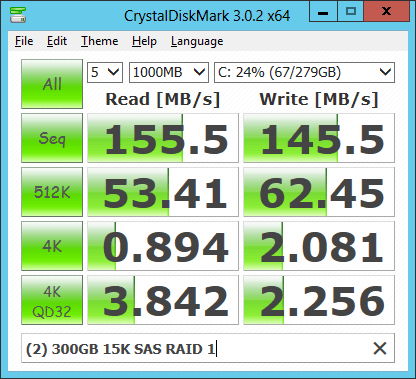
Figure 1: CrystalDiskMark Results for two 300GB 15K SAS drives in RAID 1
This shows you the performance characteristics for a two drive, RAID 1 array with 300GB, 15K rpm conventional magnetic drives. An array like this is commonly used for the system drive in a database server to get decent performance and to have some redundancy for the operating system and the SQL Server binaries (for a server that is not part of a fail-over cluster instance). As an accidental DBA, you need to think about your desired performance characteristics and your required redundancy levels as you decide how to lay out your physical and logical disk configuration. You have to think about the different types of database files, and how they will be used with your type of workload as you make these decisions. No matter how you decide to configure your disk subsystem, it is very important to test each logical drive with CrystalDiskMark and SQLIO before you install SQL Server, so that you don’t have any unpleasant surprises later!
Our online training (Pluralsight) courses that can help you with this topic:
- SQL Server: Improving Storage Subsystem Performance
- SQL Server: Evaluating and Sizing Hardware
- Understanding Server Hardware
The post The Accidental DBA (Day 2 of 30): Hardware Selection: Disk Configurations and RAID -> Performance not Capacity appeared first on Glenn Berry.
]]>The post A SQL Server Hardware Tidbit a Day – Day 23 appeared first on Glenn Berry.
]]>A disk array controller is a device which manages the physical disk drives and presents them to the computer as logical units. It almost always implements hardware RAID, thus it is sometimes referred to as RAID controller. It also often provides additional disk cache.
Figure 1 shows a typical hardware RAID controller.

Figure 1: Typical Hardware RAID Controller
For database server use (with recent vintage servers), you usually have an embedded hardware RAID controller on the motherboard, that is used for your internal SAS or SATA drives. It is pretty standard practice to have two internal drives in a RAID 1 array, controlled by the embedded RAID controller, that are used to host the operating system and the SQL Server binaries (for standalone SQL Server instances). This gives you a better level of redundancy against losing a single drive and going down.
If you are using Direct Attached Storage (DAS), you will also have one or more (preferably at least two) hardware RAID controller cards that will look similar to what you see in Figure 1. These cards go into an available PCI-E expansion slot in your server, and then are connected by a relatively short cable to an external storage enclosure (such as you see in Figure 2).

Figure 2: Dell PowerVault MD1220 Direct Attached Storage Array
Each direct attached storage array will have anywhere from 14 to 24 drives. Figure 2 shows a Dell PowerVault MD1220 storage array. The RAID controller(s) are used to build and manage RAID arrays from these available drives, which eventually are presented to Windows as logical drives, usually with drive letters. For example, you could create a RAID 10 array with 16 drives and another RAID 10 array with eight drives from a single 24 drive direct attached storage array. These two RAID arrays would be presented to Windows, and show up as say the L: drive and the R: drive.
Enterprise level RAID controllers usually have some cache memory on the card itself. This cache memory can be used to cache reads or to cache writes, or split between both. For SQL Server OLTP workloads, it is a standard best practice to devote your cache memory entirely to write caching. You can also choose between write-back and write-through cache policies for your controller cache. Write-back caching provides better performance, but there is a slight risk of having data in the cache that has not been written to the disk if the server fails. That is why it is very important to have a battery-backed cache if you decide to use write-back caching.
Most enterprise-level RAID controllers will fall-back from write-back caching to write-though caching (which is safer, but slower) if the battery for the cache is not present and charged. Some newer, high-end RAID controllers are also able to use a feature developed by LSI called CacheCade that lets you use a number of SSDs as a cache in front of conventional SAS drives. This gives you much of the performance benefit of SSD storage without having to spend the money to have 100% SSD storage.
The post A SQL Server Hardware Tidbit a Day – Day 23 appeared first on Glenn Berry.
]]>The post A SQL Server Hardware Tidbit a Day – Day 19 appeared first on Glenn Berry.
]]>RAID is a technology that allows the use of multiple hard drives, combined in various ways, to improve redundancy, availability and performance, depending on the RAID level used. When a RAID array is presented to a host in Windows, it is called a logical drive. Using RAID, the data is distributed across multiple disks in order to:
• Overcome the I/O bottleneck of a single disk
• Get protection from data loss through the redundant storage of data on multiple disks
• Avoid any one hard drive being a single point of failure
• Manage multiple drives more effectively
Regardless of whether you are using traditional magnetic hard drive storage or newer solid state storage technology, most database servers will employ some sort of RAID technology. RAID improves redundancy, improves performance, and makes it possible to have larger logical drives. RAID is used for both OLTP and DW workloads. Having more spindles in a RAID array helps both IOPS and throughput, although ultimately throughput can be limited by a RAID controller, HBA, NIC, or the PCI-E slot that is being used.
Keep in mind that while RAID does provide redundancy in your data storage, it is not a substitute for an effective backup strategy or a high availability/disaster recovery (HA/DR) strategy. Regardless of what level of RAID you use in your storage subsystem, you still need to run SQL Server full, differential, and log backups as necessary to meet your recovery point objective (RPO) and recovery time objective (RTO) goals.
There are a number of commercially-available RAID configurations, which I’ll review over the coming sections, and each has associated costs and benefits. When considering which level of RAID to use for different SQL Server components, you have to carefully consider your workload characteristics, keeping in mind your hardware budget. If cost is no object, I am going to want RAID 10 for everything, i.e. data files, log file, and tempdb. If my data is relatively static, I may be able to use RAID 5 for my data files. It is also fairly common to use RAID 5 for SQL Server backup files.
During the discussion, I will assume that you have a basic knowledge of how RAID works, and what the basic concepts of striping, mirroring, and parity mean.
RAID 0 (disk striping with no parity)
RAID 0 simply stripes data across multiple physical disks. This allows reads and writes to happen simultaneously, across all of the striped disks, so offering improved read and write performance, compared to a single disk. However, it actually provides no redundancy whatsoever. If any disk in a RAID 0 array fails, the array is off-line and all of the data in the array is lost. This is actually more likely to happen than if you only have a single disk, since the probability of failure for any single disk goes up as you add more disks. There is no disk space loss for storing parity data (since there is no parity data with RAID 0), but I don’t recommend that you use RAID 0 for database use, unless you enjoy updating your resume! RAID 0 is often used by serious computer gaming enthusiasts in order to reduce the time it takes to load portions of their favorite games. They do not keep any important data on their “gaming rigs”, so they are not that concerned about losing one of their drives. Even this usage is declining over time as SSDs become more affordable.
RAID 1 (disk mirroring or duplexing)
You need at least two physical disks for RAID 1. Your data is mirrored between the two disks, i.e. the data on one disk is an exact mirror of that on the other disk. This provides redundancy, since you can lose one side of the mirror without the array going off-line and without any data loss, but at the cost of losing 50% of your space to the mirroring overhead. RAID 1 can improve read performance, but can hurt write performance in some cases, since the data has to be written twice.
On a database server, it is very common to install the Windows Server operating system on two of the internal drives, configured in a RAID 1 array, and using an embedded internal RAID controller on the motherboard. In the case of a non-clustered database server, it is also common to install the SQL Server binaries on the same two drive RAID 1 array as the operating system. This provides basic redundancy for both the operating system and the SQL Server binaries. If one of the drives in the RAID 1 array fails, you will not have any data loss or down-time. You will need to replace the failed drive and rebuild the mirror, but this is a pretty painless operation, especially compared to reinstalling the operating system and SQL Server!
RAID 5 (striping with parity)
RAID 5 is probably the most commonly-used RAID level, for both general file server systems and for SQL Server. RAID 5 requires at least three physical disks. The data, and calculated parity information, is striped across the physical disks by the RAID controller. This provides redundancy because if one of the disks goes down, then the missing data from that disk can be reconstructed from the parity information on the other disks. Also, rather than losing 50% of your storage, in order to achieve redundancy, as for disk mirroring, you only lose 1/N of your disk space (where N equals the number of disks in the RAID 5 array) for storing the parity information. For example, if you had six disks in a RAID 5 array, you would lose 1/6th of your space for the parity information. As you add more disks to a RAID 5 array, the chances of losing any one of the disks goes up (due to simple statistics), so that is a reliability consideration for larger arrays.
However, you will notice a very significant decrease in performance while you are missing a disk in a RAID 5 array, since the RAID controller has to work pretty hard to reconstruct the missing data. Furthermore, if you lose a second drive in your RAID 5 array, the array will go offline, and all of the data will be lost. As such, if you lose one drive, you need to make sure to replace the failed drive as soon as possible. RAID 6 stores more parity information than RAID 5, at the cost of an additional disk devoted to parity information, so you can survive losing a second disk in a RAID 6 array.
Finally, there is a write performance penalty with RAID 5, since there is overhead to write the data, and then to calculate and write the parity information. As such, RAID 5 is usually not a good choice for transaction log drives, where we need very high write performance. I would also not want to use RAID 5 for data files where I am changing more than 10% of the data each day. One good candidate for RAID 5 is your SQL Server backup files. You can still get pretty good backup performance with RAID 5 volumes, especially if you use backup compression and striped backups.
RAID 10 and RAID 0+1
When you need the best possible write performance, you should consider either RAID 0+1 or, preferably, RAID 10. These two RAID levels both involve mirroring (so there is a 50% mirroring overhead) and striping but differ in the details in how it is done in each case.
In RAID 10 (striped set of mirrors), the data is first mirrored and then striped. In this configuration, it is possible to survive the loss of multiple drives in the array (one from each side of the mirror), while still leaving the system operational. Since RAID 10 is more fault tolerant than RAID 0+1, it is preferred for database usage.
In RAID 0+1 (mirrored pair of stripes) the data is first striped, and then mirrored. This configuration cannot handle the loss of more than one drive in each side of the array.
RAID 10 and RAID 0+1 offer the highest read/write performance, but incur a roughly 100% storage cost penalty, which is why they are sometimes called “rich man’s RAID”. These RAID levels are most often used for OLTP workloads, for both data files and transaction log files. As a SQL Server database professional, you should always try to use RAID 10 if you have the hardware and budget to support it. On the other hand, if your data is less volatile, you may be able to get perfectly acceptable performance using RAID 5 for your data files. By “less volatile”, I mean if less than 10% of your data changes per day, then you may still get acceptable performance from RAID 5 for your data files(s).
The post A SQL Server Hardware Tidbit a Day – Day 19 appeared first on Glenn Berry.
]]>