The post Windows Power Plan Effects on Newer Intel Processors appeared first on Glenn Berry.
]]>This server had a new, default installation of Windows Server 2012 R2 Standard Edition, which meant that it was using the default Windows Balanced Power Plan. Running CPU-Z 1.71.1 showed the actual core speed of Core #0 while the system was at rest, with the Balanced Power Plan (Figure 1) and with the High Performance Power Plan (Figure 2).
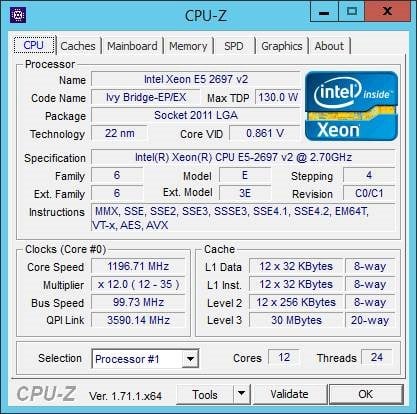
Figure 1: CPU-Z Results with Balanced Power Plan
Changing the Power Plan to High Performance had an immediate effect on the processor core speed, as shown in Figure 2.
![clip_image002[5]](https://www.sqlskills.com/blogs/glenn/wp-content/uploads/2015/02/clip_image0025.jpg "clip_image002[5]")
Figure 2: CPU-Z Results with High Performance Power Plan
Here are the Geekbench results for the default Balanced Power Plan (Figure 3) and the High Performance Power Plan (Figure 4). The Single-Core score is more relevant here, since the 32-bit GUI version of Geekbench 3.3 only uses 32 total cores (and there are 48 logical cores in this server).
![clip_image002[7]](https://www.sqlskills.com/blogs/glenn/wp-content/uploads/2015/02/clip_image0027.jpg "clip_image002[7]")
Figure 3: Geekbench 3.3 Results with Balanced Power Plan
![clip_image002[9]](https://www.sqlskills.com/blogs/glenn/wp-content/uploads/2015/02/clip_image0029.jpg "clip_image002[9]")
Figure 4: Geekbench 3.3 Results with High Performance Power Plan
You need to keep in mind that your BIOS power management settings will override your Windows Power Plan settings, so it is very important to check what is going on with CPU-Z. For you virtualization users, you need to check what your hypervisor power management settings are doing, because they will override what is happening with the guest OS Windows Power Plan settings.
Not only does power management affect your processor core speed (and CPU/memory benchmarks like Geekbench), but it also affects things like the performance of your PCIe expansion slots. In case you want some official Microsoft guidance on this subject, the Microsoft KB article linked below discusses it in quite a bit of detail.
Slow Performance on Windows Server 2008 R2 when using the “Balanced” Power Plan
This issue has been around since Windows Server 2008, and still exists with Windows Server 2012 R2.
The post Windows Power Plan Effects on Newer Intel Processors appeared first on Glenn Berry.
]]>The post CPU-Z Version 1.67 is Available appeared first on Glenn Berry.
]]>This can be caused by your Windows Power Plan in Windows Server 2008 or newer. By default, the Power Plan is set to Balanced instead of High Performance like we want for a database server. This is easy to change, and goes into effect immediately without rebooting the server. After you make this change in Windows, you should use CPU-Z to see what your processor core speed is. If it is still throttled back, you are going to have to change your BIOS power management setting.
This is necessary because the Windows Power Plan can be overridden by hardware-level power management settings that are set in your main BIOS setup. You typically want to set your hardware-level power management to OS Control or to Max Performance in the BIOS. This will let your processors take advantage of Intel Turbo Boost or AMD Turbo Core, and it will let them run at their full base clock speed or above at all times. This is quite important for OLTP query performance, but have also seen it affect ETL performance. Many storage vendors, such as Fusion-io and LSI also recommend that you make these changes to avoid having the PCI-E expansion slots affected by power management.
Figure 1 shows my desktop processor running at full speed with Turbo Boost (see the Core Speed indicator at the bottom left quarter of the form), while Figure 2 shows the processor being throttled back due to power management.
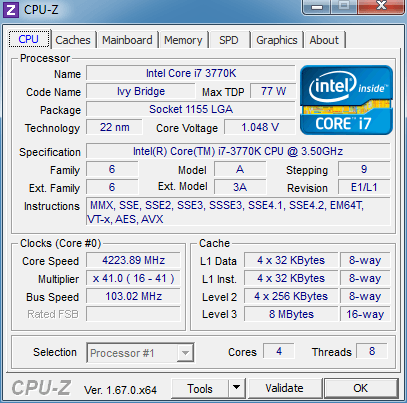
Figure 1: Processor Core Speed without any Power Management
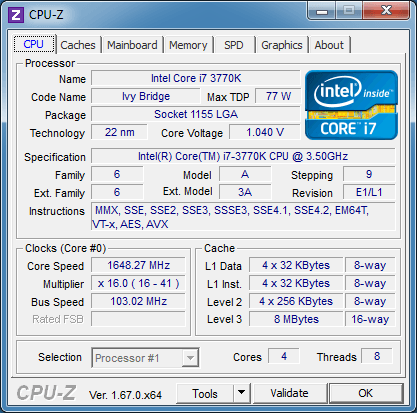
Figure 2: Processor Core Speed with Power Management in Effect
I have seen OLTP query performance improve by as much as 25% by making these simple changes. The level of improvement you will see depends on the exact processors you are using (newer processors like Haswell, Ivy Bridge, and Sandy Bridge handle power management better than older processors, such as Nehalem and Westmere), and whether or not you have other big performance bottlenecks.
The post CPU-Z Version 1.67 is Available appeared first on Glenn Berry.
]]>The post A SQL Server Hardware Tidbit a Day – Day 27 appeared first on Glenn Berry.
]]>Power Management is when the clock speed of your processors is reduced (usually by changing the processor multiplier value) in order to use less electrical power when the processor is not under a heavy load. On the surface, this seems like a good idea, since electrical power costs can be pretty significant in a data center. Throttling back a processor can save some electricity and reduce your heat output, which can reduce your cooling costs in a data center. Unfortunately, with some processors, and with some types of SQL Server workloads (particularly OLTP workloads), you will pay a pretty significant performance price (in the range of 20-25%) for those electrical power savings.
When a processor has power management features that are enabled, the clock speed of the processor will vary based on the load the processor is experiencing. You can watch this in near real-time with a tool like CPU-Z, that displays the current clock speed of Core 0. The performance problem comes from the fact that some processors don’t seem to react fast enough to an increase in load to give their full performance potential, particularly for very short OLTP queries that often execute in a few milliseconds.
This problem seems to show up especially with Intel Xeon 5500, 7500 (Nehalem-EP and EX), Intel Xeon 5600, E7 series processors (Westmere-EP and EX families) and with the AMD Opteron 6100, 6200, and 6300 series (Magny Cours, Bulldozer and Piledriver families). Much older processors don’t have any power management features, and some slightly older processors (such as the Intel Xeon 5300 and 5400 series) seem to handle power management slightly better. I have also noticed that the Intel Sandy Bridge-EP processors seem to handle power management a little better than the Nehalem and Westmere did, i.e. they don’t show as noticeable of a performance decrease when power management is enabled.
Basically, you have two types of power management that you need to be aware of as a database professional. The first type is hardware-based power management, where the main system BIOS of a server is set to allow the processors to manage their own power states, based on the load they are seeing from the operating system. The second type is software-based power management, where the operating system (with Windows Server 2008 and above) is in charge of power management using one of the standard Windows Power Plans, or a customized version of one of those plans. When you install Windows Server 2008 or above, Windows will be using the Balanced Power Plan by default. When you are using the Balanced Power Plan, Intel processors that have Turbo Boost Technology will not use Turbo Boost (meaning that they will not temporarily overclock individual processor cores for more performance).
So, after all of this, what do I recommend you do for your database server? First, check your Windows Power Plan setting, and make sure you are using the High Performance Power Plan. This can be changed dynamically without a restart. Next, run CPU-Z, and make sure your processor is running at or above its rated speed. If it is running at less than its rated speed with the High Performance Power Plan, that means that you have hardware power management overriding what Windows has asked for. That means you are going to have to restart your server (in your next maintenance window) and go into your BIOS settings and either disable power management or set it to OS control (which I prefer).
The post A SQL Server Hardware Tidbit a Day – Day 27 appeared first on Glenn Berry.
]]>