The post SQLskills SQL101: Upgrading to a Different Edition of SQL Server appeared first on Glenn Berry.
]]>Introduction
A relatively common task that you may have to handle as a database professional is upgrading to a different edition of SQL Server on an existing instance of SQL Server. This is known as an Edition Upgrade, and Microsoft documents the procedure here. This is different than a version upgrade (such as going from SQL Server 2012 to SQL Server 2017).
The two most common scenarios are upgrading from Evaluation Edition to a paid Edition, and upgrading from Standard Edition to Enterprise Edition. There are other possible paths, that are listed for SQL Server 2016 and for SQL Server 2017.
Edition Upgrade Procedure
In order to upgrade the Edition of SQL Server, you will need your SQL Server installation media (which is typically an .iso file). With modern versions of Windows Server you can right-click on the .iso file and select Mount to make the contents of the .iso file available. From the root folder, double-click setup.exe. Once the SQL Server Setup program has loaded (SQL Server Installation Center), click Maintenance, and then select Edition Upgrade.
After a few seconds, you should see the Product Key page as shown in Figure 1. If you are upgrading to a paid edition, you will need a Product Key that will look something like this: 7GPYM-VHN83-PHDM3-Q9T2R-KBV91
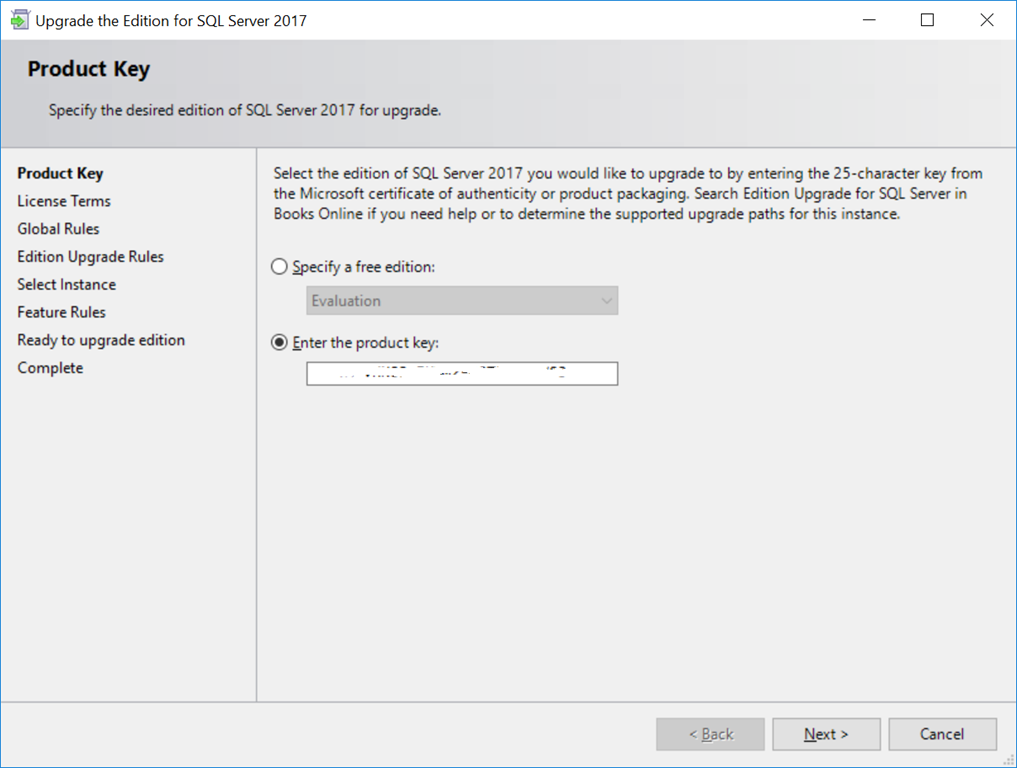
Figure 1: Product Key
Next, you’ll have to accept the license terms, as shown in Figure 2.
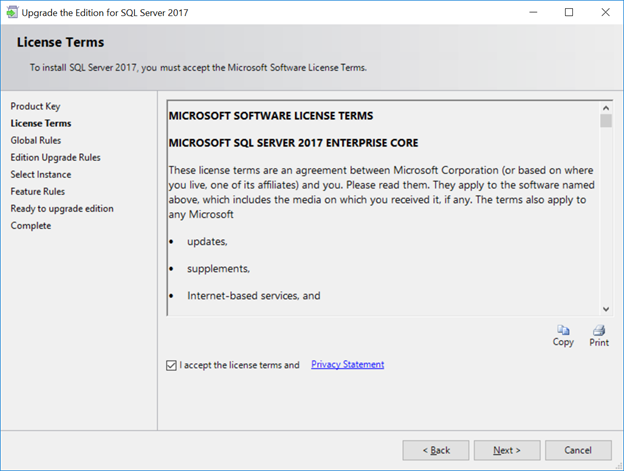
Figure 2: License Terms
Next, the Edition Upgrade Rules will be checked, as you see in Figure 3.
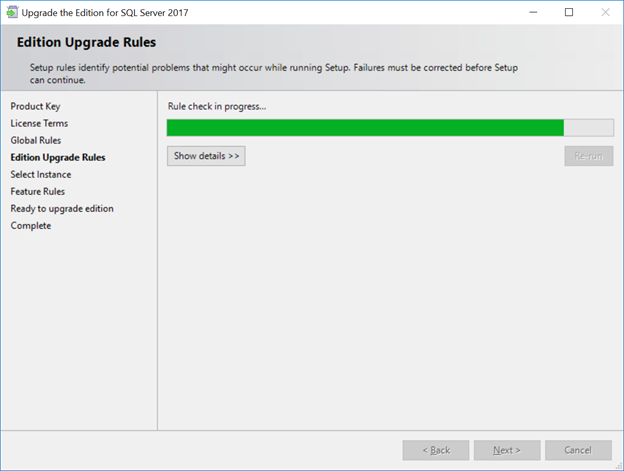
Figure 3: Edition Upgrade Rules
Once the Edition Upgrade Rule check has completed, you can check the details as shown in Figure 4. You will have to resolve any failed rule checks before you can continue.
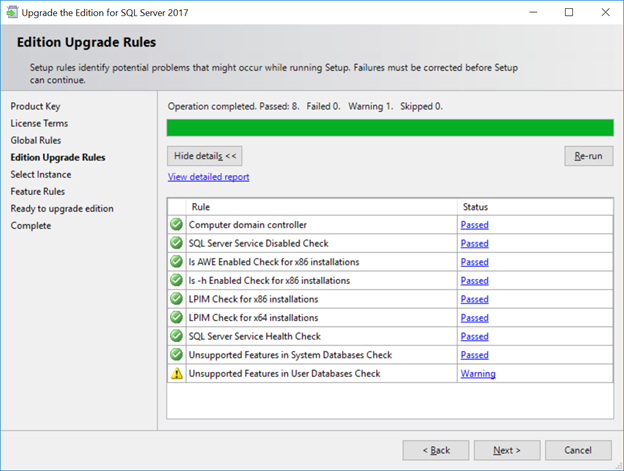
Figure 4: Edition Upgrade Rules Details
Next, you will have to select the instance that you want to upgrade, as shown in Figure 5.
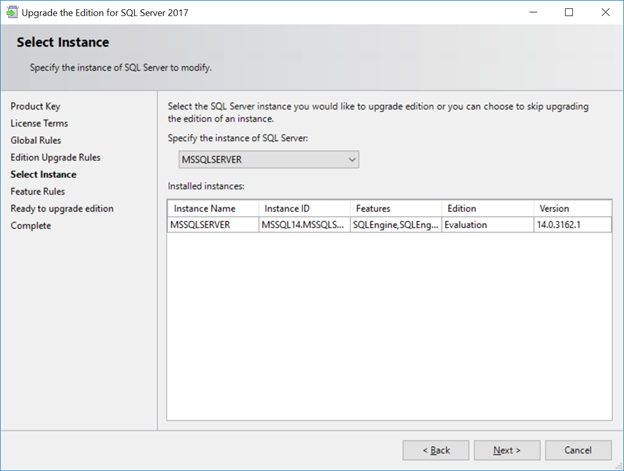
Figure 5: Select Instance
Finally, you will see the Ready to upgrade edition screen as shown in Figure 6. You will need to click the Upgrade button to continue.
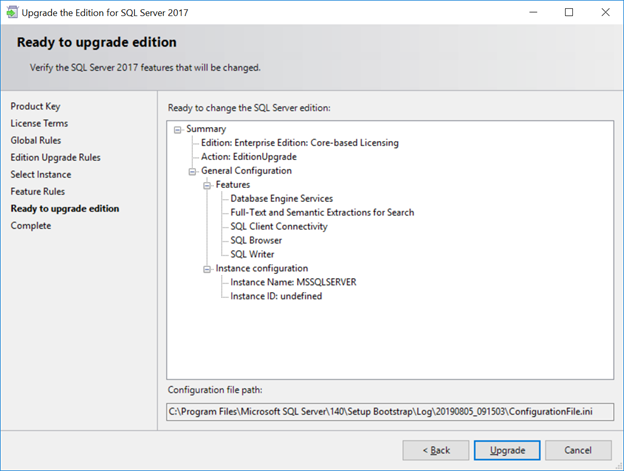
Figure 6: Ready to Upgrade Edition
The Edition Upgrade process usually goes pretty quickly, in a couple of minutes. The setup program will restart the SQL Server services as part of the installation, so this will cause an outage. In some cases, you may have to also restart the machine that you are running on.
The post SQLskills SQL101: Upgrading to a Different Edition of SQL Server appeared first on Glenn Berry.
]]>The post SQLskills SQL101: The Importance of Maintaining SQL Server appeared first on Glenn Berry.
]]>When I look at many SQL Server instances in the wild, I still see a large percentage of instances that are running extremely old builds of SQL Server for whatever major of version of SQL Server is installed. This is despite years of cajoling and campaigning by myself and many others (such as Aaron Bertrand), and an official guidance change by Microsoft (where they now recommend ongoing, proactive installation of Service Packs and Cumulative Updates as they become available).
Microsoft has a helpful KB article for all versions of SQL Server that explains how to find and download the latest build of SQL Server for each major version:
Where to find information about the latest SQL Server builds
Here is my commentary on where you should try to be for each major recent version of SQL Server:
SQL Server 2017
SQL Server 2017 and newer will use the “Modern Servicing Model”, which does away with Service Packs. Instead, Microsoft will release Cumulative Updates (CU) using a new schedule of one every month for the first year after release, and then one every quarter for next four years after that.
Not only does Microsoft correct product defects in CUs, they also very frequently release new features and other product improvements in CUs. Given that, you should really try to be on the latest CU as soon as you are able to properly test and deploy it.
SQL Server 2017 Build Versions
Performance and Stability Fixes in SQL Server 2017 CU Builds
SQL Server 2016
SQL Server 2016 and older use the older “incremental servicing model”, where each new Service Pack is a new baseline (or branch) that has it’s own Cumulative Updates that are released every eight weeks. Microsoft corrects product defects in both Service Packs and in CUs, and they also very frequently release new features and other product improvements in both CUs and Service Packs.
As a special bonus, Microsoft has also gotten into the very welcome habit of actually backporting some features and improvements from newer versions of SQL Server into Service Packs for older versions of SQL Server. The latest example of this was SQL Server 2016 Service Pack 2 which has a number of improvements backported from SQL Server 2017.
SQL Server 2016 Build Versions
Performance and Stability Related Fixes in Post-SQL Server 2016 SP1 Builds
Performance and Stability Related Fixes in Post-SQL Server 2016 SP2 Builds
SQL Server 2014
SQL Server 2014 will fall out of Mainstream Support from Microsoft on July 9, 2019. If you are running SQL Server 2014, you really should be on at least SQL Server 2014 SP2 (which got many improvements backported from SQL Server 2016), and ideally, you should be on the latest SP2 Cumulative Update. You should also be on the lookout for SQL Server 2014 SP3 which is due to be released sometime in 2018, which is very likely to have even more backported improvements.
If you are on SQL Server 2014 or SQL Server 2012, Microsoft has a very useful KB article that covers recommended updates and configuration options for high performance workloads. A number of these configuration options are already included if you are on the latest SP or newer for either SQL Server 2012 or SQL Server 2014.
SQL Server 2014 Build Versions
Performance and Stability Related Fixes in Post-SQL Server 2014 SP2 Builds
Hidden Performance and Manageability Improvements in SQL Server 2012/2014
SQL Server 2012 fell out of Mainstream Support from Microsoft on July 11, 2017. If you are running SQL Server 2012, you really should be on SQL Server 2012 SP4, ideally with the Spectre/Meltdown security update applied on top of SP4. Similar to SQL Server 2014 SP2, SQL Server 2014 SP4 also included a number of product improvements that were backported from SQL Server 2016.
SQL Server 2012 SP3 build versions
Performance and Stability Related Fixes in Post-SQL Server 2012 SP3 Builds
So just to recap, here are my recommendations by major version:
SQL Server 2017: Latest CU as soon as you can test and deploy
SQL Server 2016: Latest SP and CU as soon as you can test and deploy. Try to at least be on SQL Server 2016 SP2.
SQL Server 2014: Latest SP and CU as soon as you can test and deploy. Try to at least be on SQL Server 2014 SP2 (and SP3 when it is released).
SQL Server 2012: SP4 plus the security hotfix for Spectre/Meltdown.
The post SQLskills SQL101: The Importance of Maintaining SQL Server appeared first on Glenn Berry.
]]>The post SQL101: Avoiding Mistakes on a Production Database Server appeared first on Glenn Berry.
]]>One reason that it is relatively difficult to get your first job as a DBA (compared to other positions, such as a developer) is that it is very easy for a DBA with Production access to cause an enormous amount of havoc with a single momentary mistake.
As a Developer, many of your most common mistakes are only seen by yourself. If you write some code with a syntax error that doesn’t compile, or you write some code that fails your unit tests, usually nobody sees those problems but you, and you have the opportunity to fix your mistakes before you check-in your code, with no one being any the wiser.
A DBA doing something like running an UPDATE or DELETE statement without a WHERE clause, running a query against a Production instance database when you thought you were running it against a Development instance database, or making a schema change in Production that is a size of data operation (that locks up a table for a long period) are just a few examples of common DBA mistakes that can have huge consequences for an organization.
A split-second, careless DBA mistake can cause a long outage that can be difficult or even impossible to recover from. In SQL Server, Cntl-Z (the undo action) does not work, so you need to be detail-oriented and careful as a good DBA. As the old saying goes: “measure twice and cut once”.
Here are a few basic tips that can help you avoid some of these common mistakes:
Using Color-Coded Connections in SSMS
SQL Server Management Studio (SSMS) has long had the ability to set a custom color as a connection property for individual connections to an instance of SQL Server. This option is available in legacy versions of SSMS and in the latest 17.4 version of SSMS. You can get even more robust connection coloring capability with third-party tools such as SSMS Tools Pack.
The idea here is to set specific colors, such as red, yellow, or green for specific types of database instances to help remind you when you are connected to a Production instance rather than a non-Production instance. It is fairly common to use red for a Production instance. This can be helpful if you don’t have red green color blindness, which affects about 7-10% of men, but is much less common among women.
Figure 1 shows how you can check the “Use custom color” checkbox, and then select the color you want to use for that connection. After that, as long as you use the exact same connection credentials for that instance from your copy of SSMS, you should get the color that you set when you open a connection to that instance.
I would not bet my job on the color always being accurate, because depending on exactly how you open a connection to the instance, you may not always get the custom color that you set for the connection. Still, it is an extra piece of added insurance.
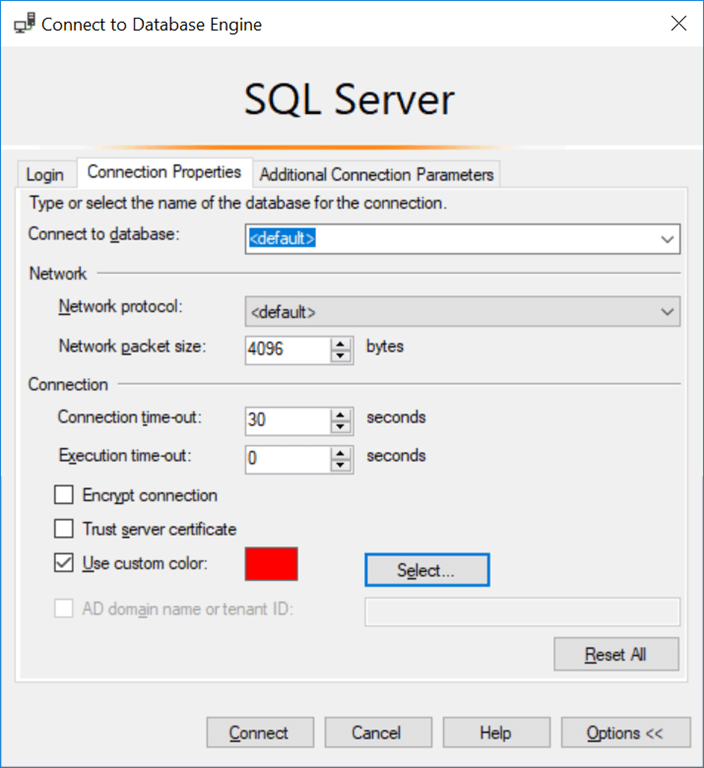
Figure 1: Setting a custom color for a connection
Figure 2 shows a red bar at the bottom of the query window (which is the default position for the bar) after setting a custom connection color. This would help warn me that I was connected to a Production instance, so I need to be especially careful before doing anything.
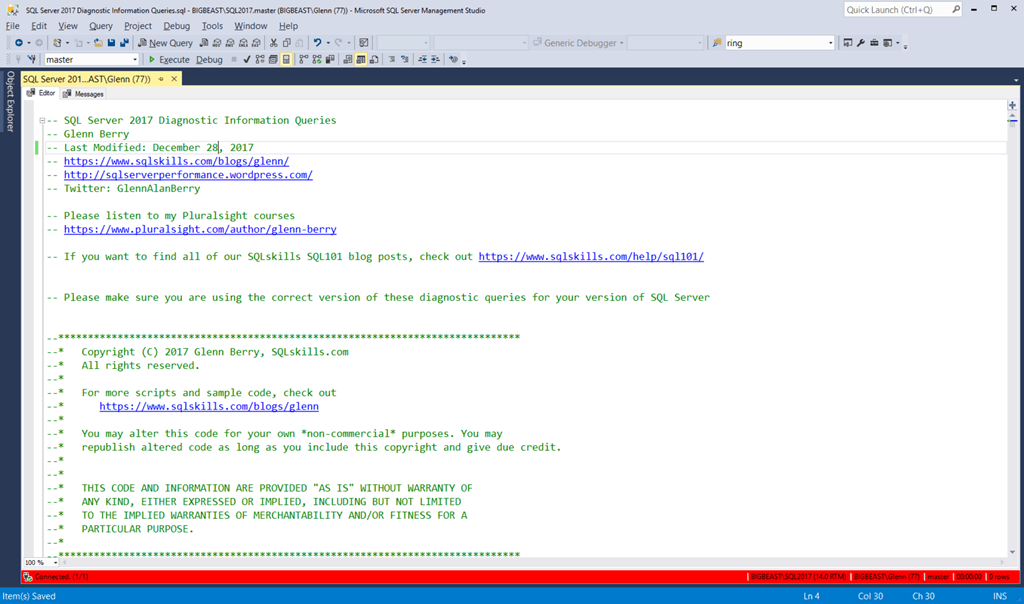
Figure 2: Query window using red for the connection
Double-Checking Your Connection Information Before Running a Query
Something you should always do before running any query is to take a second to glance down to the bottom right of SSMS Query window to verify your current connection information. It will show the name of the instance you are connected to, your logon information (including the SPID number), and the name of the database you are connected to.
Taking the time to always verify that you are connected to the database and instance that you think you are BEFORE running a query will save you from making many common, costly mistakes.
Wrap Queries in an Explicit Transaction
One common safety measure is to wrap your queries (especially potentially dangerous ones that update or delete data) in an explicit transaction as you see in Figure 3. You open an explicit transaction with a BEGIN TRAN statement, then run just your query, without the COMMIT TRAN statement. If the query does what you expect (which the xx rows affected message can often quickly confirm), then you commit the explicit transaction by executing the COMMIT TRAN statement.
If it turns out that you just made a horrible mistake (like I did in the example in Figure 3) by omitting the WHERE clause, you would execute the ROLLBACK TRAN statement to rollback your explicit transaction (which could take a while to complete).
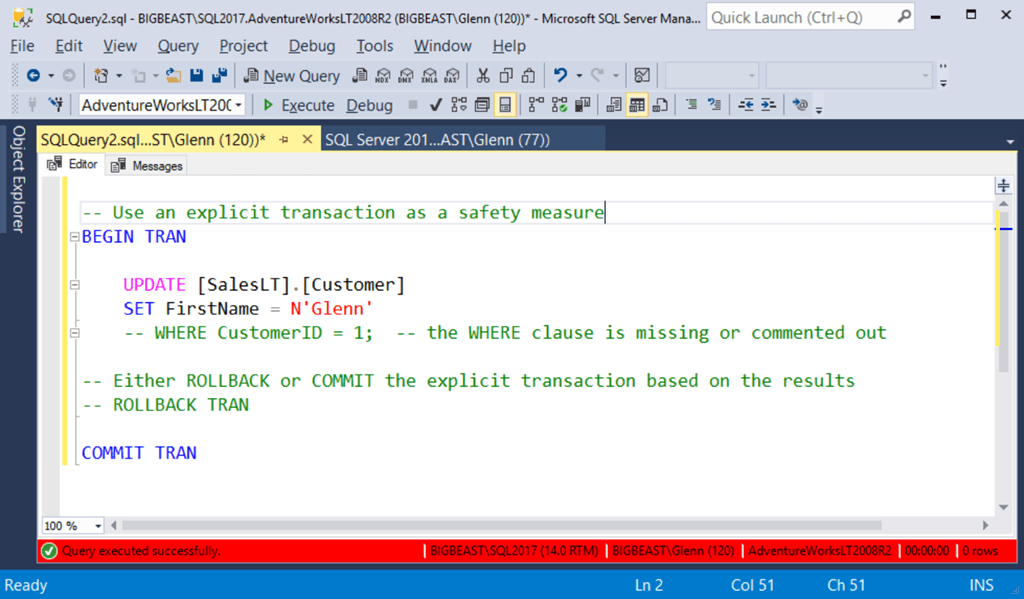
Figure 3: Using an explicit transaction as a safety measure
Test your Update/Delete Queries as Select Queries Before You Run Them
Another common safety measure is to write and run a test version of any query that is designed to change data, where you simply SELECT the rows that you are planning on changing before you actually try to change them with an UPDATE or DELETE statement. You can often just have the query count the number of rows that come back from your test SELECT statement, but you might need or want to to browse the data that comes back to be 100% sure that you don’t have a logic error in your query that would end up deleting or updating the wrong result set.
These are just a few of the most common measures for avoiding common DBA mistakes. The most important step is to always be detail-oriented and very careful when you are making potentially dangerous changes in Production, which is easier said than done. If you do make a big mistake, don’t panic, and don’t try to cover it up. Taking a little time to think about what you did, and the best way to quickly and correctly fix the problem is always the best course of action.
The post SQL101: Avoiding Mistakes on a Production Database Server appeared first on Glenn Berry.
]]>The post SQLskills SQL101: Creating SQL Server Databases appeared first on Glenn Berry.
]]>One seemingly simple task that I very often see being done in a less than optimal way is creating a new database in SQL Server. Whether it is done with the SQL Server Management Studio (SSMS) GUI, or with a T-SQL CREATE DATABASE command, many people and organizations are creating new SQL Server databases without really thinking about what they are doing, and without taking advantage of a number of beneficial options and properties.
A SQL Server database requires one data file in the PRIMARY file group and one transaction log file. A very high percentage of SQL Server databases that I see in the wild only have these two required files, which can be problematic for a number of reasons related to both manageability and performance.
You should get in the habit of creating a new file group called MAIN, that is the default file group, that contains two or more data files that are the same size, with the same auto growth increment. If you do this, only the system objects will be in the required data file in the PRIMARY file group, while all of your user objects will be in the other data files in the MAIN file group. This will let you locate your data files across multiple LUNs (either now or in the future), which will make them easier to manage and potentially give you better I/O performance (if those LUNs actually map to separate underlying storage).
When you create a new SQL Server database, it inherits most of its properties from the model system database (unless you explicitly override those properties with ALTER DATABASE commands). By default, SQL Server creates the files for the database in the default location that was specified when SQL Server was installed, unless someone has changed those default locations using the Server Properties: Database Settings dialog shown in Figure 1.
If you do change these database default locations, you should make 100% sure that the new locations actually exist in your file system (since SQL Server does not validate them when you change them). If you change them to a non-existent location, and later try to install a SQL Server Service Pack or Cumulative Update, the Database Engine portion of the installation will fail at the end of the setup process, which could be an unpleasant surprise!
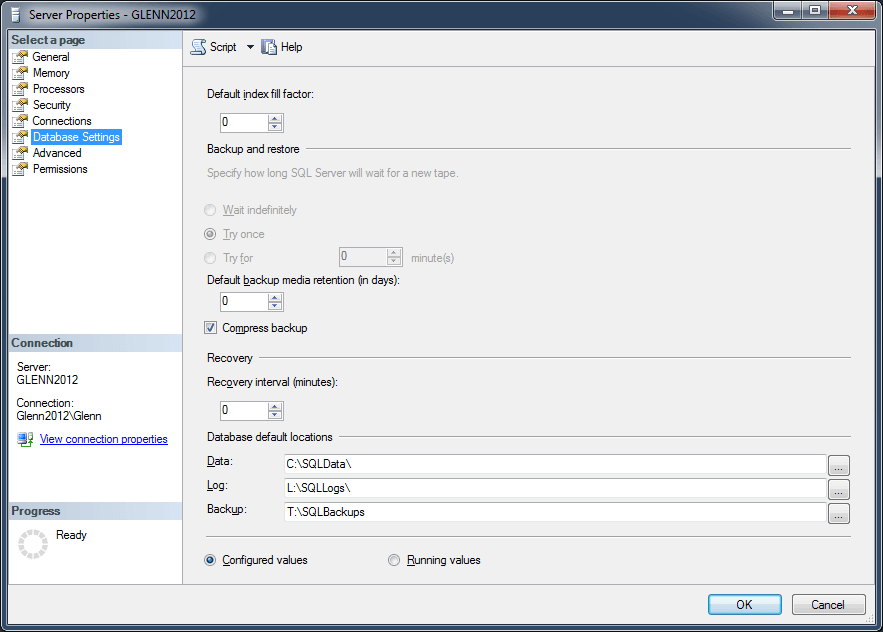
Figure 1: Server Properties: Database Settings Dialog
Another way to change the location and properties of your database files is by explicitly specifying what you want when you create the database, or afterwards, with an ALTER DATABASE command.
If you use the SSMS GUI to create a new database as shown in Figure 2, it only requires that you enter a name for the database, and then click the OK button. Even though this will work, it is not really the best method to create a new database. Instead, you should take the time to think about what you are doing and then change a few properties and settings from their default values.
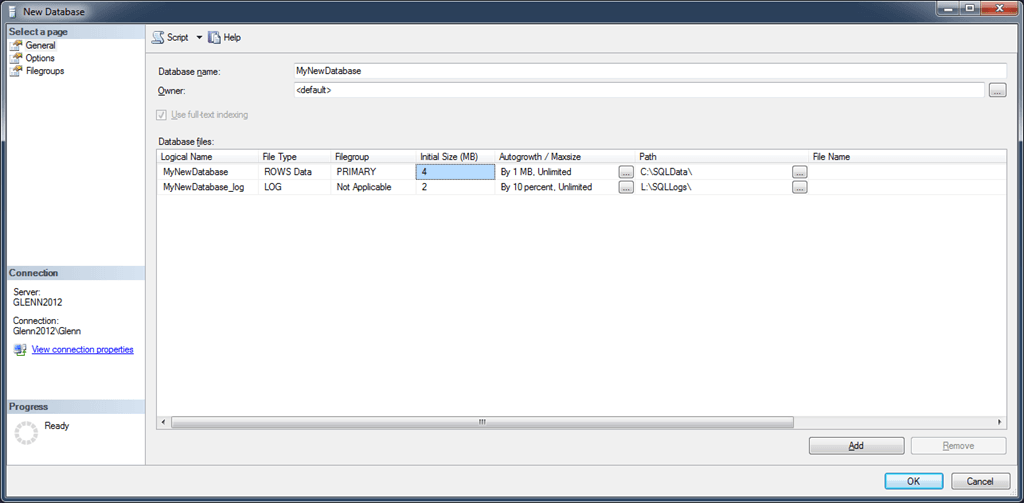
Figure 2: New Database: General Dialog with default values
The first thing you should change is the Owner of the database. You should change it from <default> to sa, to ensure that your login is not the owner of the database. Next, you should change the initial size of the files to a more appropriate, larger value. You should also change the Autogrowth increment size for the files to a more appropriate, larger value that is a fixed size in megabytes rather than a percentage-based value. Finally, you may want to change the location where your initial database files will be located. Your dialog should look something like what you see in Figure 3. After all of this, don’t click OK, because you are not done yet.
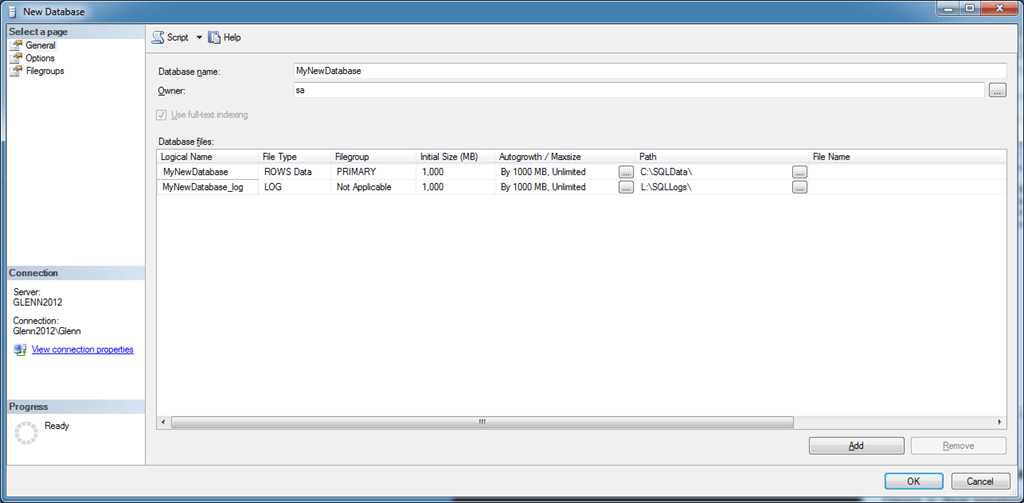
Figure 3: New Database: General Dialog with modified values
Next, you should go to the Options page, as shown in Figure 4, and think about whether you want to change any of your initial database property settings. For example, you might want to change the recovery model, the compatibility level, or possibly other settings depending on your workload or SLA requirements. The point here is to carefully consider your choices and make an explicit choice rather than just blindly accepting all of the default properties
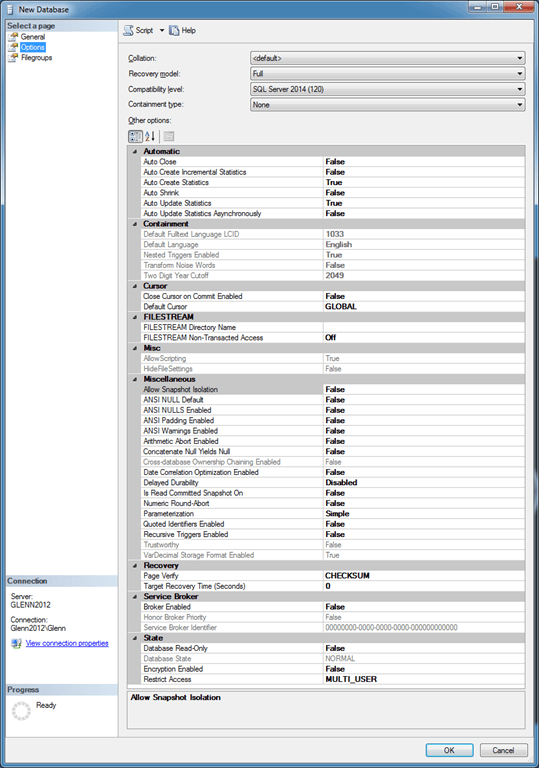
Figure 4: New Database: Options Dialog with default values
Next, we want to go to the Filegroups page, and make some changes. You should add a MAIN file group, and make it the default file group, as you see in Figure 5.
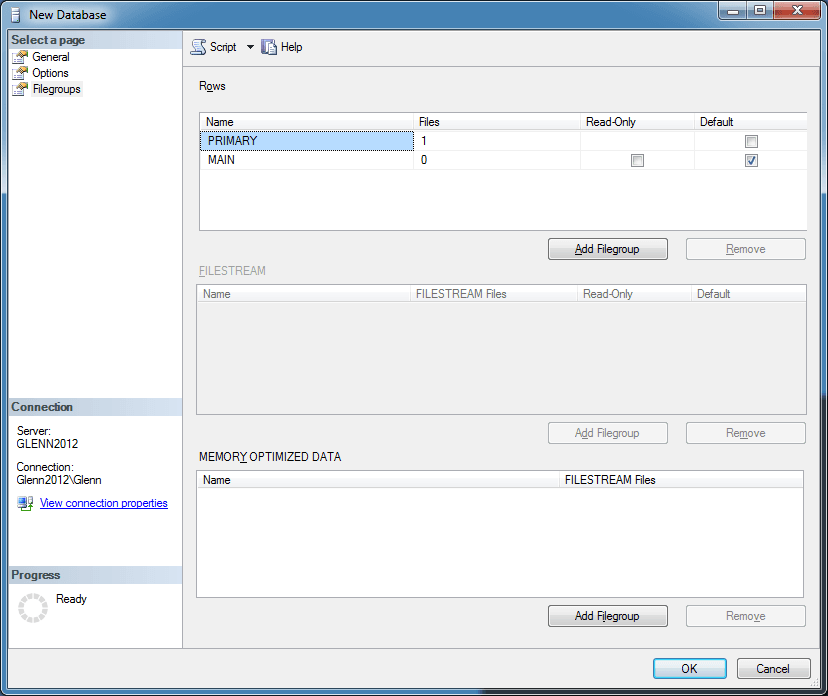
Figure 5: New Database: Filegroups Dialog with modified values
The next step is to go back to the General page and add some data files to this new MAIN file group. In Figure 6, I have added two new data files to the MAIN file group, setting their properties to appropriate values. If desired, I could change their locations in the file system. After all of this work, do not click on the OK button! Instead, use the Script dropdown to select “Script Action to New Query Window”, so you can review, edit, and save your database creation T-SQL script.
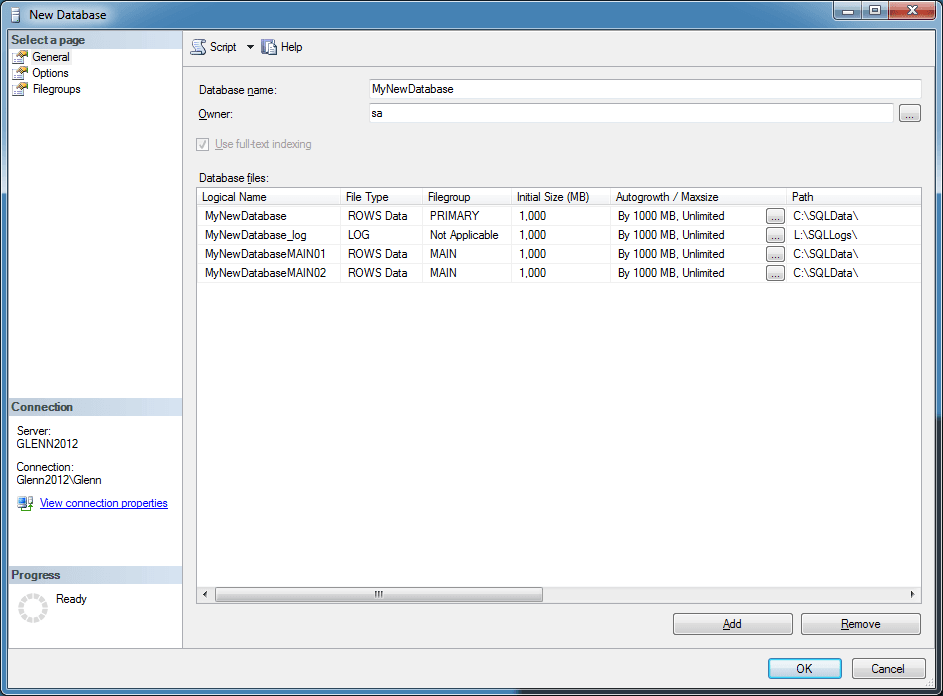
Figure 6: New Database: General Dialog with final values
As appropriate for a SQL101-level post, this covers the basic options you should consider when creating a database, as opposed to just typing a database name and clicking OK. If you take the time to do this when you first create the database, you will have a lot more flexibility in the future as your database gets larger.
The post SQLskills SQL101: Creating SQL Server Databases appeared first on Glenn Berry.
]]>The post SQLskills SQL101: SQL Server Core Factor Table appeared first on Glenn Berry.
]]>Back in the SQL Server 2012 release time-frame, Microsoft published a SQL Server Core Factor Table document that essentially provided a 25% discount for most AMD Opteron processors with six or more physical cores. This document was updated for the SQL Server 2014 release.
Even with this discount, it was not really cost-effective to use AMD Opteron processors for SQL Server usage, because of their extremely poor single-threaded performance. You could easily get more total capacity, better single-threaded performance, and lower SQL Server licensing costs with an appropriate, modern Intel Xeon E5 or E7 processor.
For the SQL Server 2016 release, there was no update for the SQL Server Core Factor Table. In fact, Microsoft has a useful new document, entitled “Introduction to Per Core Licensing and Basic Definitions” where they explicitly state that the Core Factor Table is not applicable to SQL Server starting with SQL Server 2016. So far, there has been no word of any change in this stance for SQL Server 2017.
Despite this, there is still some confusion and misinformation about the SQL Server Core Factor Table, such as this example:
The SQL Server Core Factor Table is not necessary for SQL Server 2008 R2 (which used processor licensing instead of core licensing), and it does not apply to SQL Server 2016 and newer. It is only valid for SQL Server 2012 and SQL Server 2014.
It will be interesting to see whether the upcoming AMD Epyc “Naples” server processors will perform well with SQL Server workloads. They certainly will have enough memory density and PCIe 3.0 lanes to be very interesting for some types of SQL Server workloads, such as DW/Reporting. AMD is also pitching the idea that a single-socket server using an AMD Epyc processor will be a good alternative to a two-socket Intel server.
The post SQLskills SQL101: SQL Server Core Factor Table appeared first on Glenn Berry.
]]>The post SQLskills SQL101: Sequential Throughput appeared first on Glenn Berry.
]]>The Importance of Sequential Throughput for SQL Server
A number of very common, important operations that are often executed by SQL Server are potentially performance limited by the sequential throughput of the underlying storage subsystem. These include:
- Full database backups and restores
- Index creation and maintenance work
- Initializing transactional replication snapshots and subscriptions
- Initializing AlwaysOn AG replicas
- Initializing database mirrors
- Initializing log-shipping secondary’s
- Running DBCC CHECKDB
- Relational data warehouse query workloads
- Relational data warehouse ETL operations
Despite this, I often see DBAs having to contend with extremely low sequential performance on their various database servers, to the detriment of their ability to meet their SLAs for things like RPO and RTO (not to mention their sanity). This being the case, what if anything can you do to improve this situation?
One thing you should do is to do some storage subsystem benchmarking with tools like CrystalDiskMark and Microsoft DiskSpd, to find out what the potential performance of each logical drive is on the underlying machine where your SQL Server instance is running.
You can also run some simple queries and tests from SQL Server itself to see what level of sequential performance you are actually getting from your storage subsystem (which is much harder for storage administrators, SAN administrators, and storage vendors to dispute). One example is running a full database backup to a NUL device, to see the ultimate sequential read performance from where your data and log files are located. Another example is running a SELECT query with an index hint to force the query to do a clustered index scan or table scan from a relatively large table.
Note: You should do these kinds of tests during a maintenance window or ideally, before a new instance of SQL Server goes into Production. Otherwise, your testing could negatively affect your Production environment or the other Production activity could skew your test results.
Beyond that, here are some general steps you can take to improve overall storage system performance:
- Make sure you have power management configured correctly at all levels (BIOS power management, hypervisor power policy, and Windows Power Plan)
- Make sure you have Windows Instant File Initialization enabled
- Make sure you are not under memory pressure (to reduce stress on your storage subsystem)
- Make sure you are using the latest version of SQL Server
- Make sure you have installed the latest Service Pack and Cumulative Update for your version of SQL Server
- Favor Enterprise Edition or Standard Edition (because it has better I/O performance)
- Use compression to reduce your I/O requirements (backup compression, data compression, and columnstore indexes
- Make sure your indexes are tuned appropriately (not too many and not too few)
- Keep your index fragmentation under control
You can watch my Pluralsight course SQL Server: Improving Storage Subsystem Performance to get more details about this subject. You can also read my article on SQLPerformance.com, Sequential Throughput Speeds and Feeds to get some more technical details about sequential throughput.
The post SQLskills SQL101: Sequential Throughput appeared first on Glenn Berry.
]]>The post SQLskills SQL101: Using DDL Triggers appeared first on Glenn Berry.
]]>DDL Triggers
One very useful safety feature that was added to the product with the release of SQL Server 2005 is Data Definition Language (DDL) triggers. Even though they have been available for quite some time, I still don’t see that many people actually using them on their systems, which I think is a shame.
DDL triggers are described by the online documentation like this:
DDL triggers fire in response to a variety of Data Definition Language (DDL) events. These events primarily correspond to Transact-SQL statements that start with the keywords CREATE, ALTER, DROP, GRANT, DENY, REVOKE or UPDATE STATISTICS.
Basically, when a T-SQL command does something that affects the metadata or schema of your database, you can capture and log some useful information about what was changed, what the change was, when it was changed, and who did it. Depending on how you configure the DDL trigger, you can capture things that actually are metadata changes (such as CREATE, ALTER or DROP) for things like tables, views, stored procedures, functions, and indexes. You can also capture things that I don’t really consider true metadata changes, such as an ALTER INDEX REORGANIZE command.
DDL Trigger Actions
Just like with a DML Trigger, you have to decide what happens when a DDL Trigger fires. For example, one action that Microsoft likes to use in their documentation is to simply have a ROLLBACK command, along with an error message that indicates what happened. This is designed to prevent someone (perhaps you) from accidentally making a terrible mistake such as dropping a table from a Production database.
DDL Trigger Usage
Another common usage is to simply log relevant information about all DDL changes that you decide to capture to a table that you create in each database. This can be very useful when multiple people have admin rights in your Production databases. Even if that is not the case, having a record of all DDL changes to a database can be very helpful.
Another use for DDL Triggers is to capture what is happening with your index maintenance. DDL commands such as ALTER INDEX REORGANIZE and ALTER INDEX REBUILD can be logged to help you analyze your index maintenance. For example, if you see the same index being reorganized or rebuilt on a frequent, regular basis, you might want to consider lowering the fill factor on that index to reduce how quickly it becomes fragmented, which will decrease how often it needs to be reorganized or rebuilt.
Conclusion
DDL Triggers can be very useful, and they are very easy to use for a number of different purposes. They are not as secure or as powerful as SQL Server Audit, but they are available in all editions of SQL Server, starting with SQL Server 2005. They are also much easier to set-up and use. I have an example of how to create a table to log some DDL changes, along with an actual DDL trigger to capture the changes, available here.
The post SQLskills SQL101: Using DDL Triggers appeared first on Glenn Berry.
]]>The post SQLskills SQL101: Processor Selection for SQL Server appeared first on Glenn Berry.
]]>
SQL Server Licensing
Since SQL Server 2012, Microsoft has been using core-based licensing for SQL Server Enterprise Edition. With non-virtualized servers, you are required to purchase a SQL Server core license for every single physical processor core in the entire host machine, period. Every single physical core present in the host machine must be licensed. It doesn’t matter if you have disabled physical cores in the host BIOS, or if you have exceeded the physical core license limit for SQL Server Standard Edition, you still have to license every single physical core in the machine.
With virtualization, the story is slightly different. Normally, you have to purchase a SQL Server core license for every single vCPU in your virtual machine, with a minimum of four core licenses per VM. The exception to this is if you purchase enough SQL Server core licenses for all of the physical cores in the entire host machine, and if you also purchase Microsoft Software Assurance. If you do this, you can then create as many VMs with as many vCPUs as you like, without worrying about counting the vCPU cores at all.
Windows Server 2016 Licensing
Windows Server 2016 has a new core-based licensing model with a minimum of eight physical core licenses per processor and 16 physical core licenses per host machine. Fortunately, these Windows Server 2016 core licenses are relatively affordable, especially for Windows Server 2016 Standard Edition (which is all that is required for most SQL Server 2016 instances). The danger from this new licensing model is that it may encourage well-meaning server administrators to select a processor with more physical cores than they actually need for SQL Server, in order to “get their money’s worth” from the Windows Server 2016 licenses that they are required to buy for a new server. This could actually be a very expensive mistake from a SQL Server 2016 licensing cost perspective!
Modern Server Processors for SQL Server
Current generation Intel server processors have anywhere from four to twenty-four physical cores in each physical processor. For two-socket servers, this means the Intel Xeon E5-2600 v4 “Broadwell-EP” Product Family. For four-socket and higher servers, this means the Intel Xeon E7-8800 v4 “Broadwell-EX” Product Family. Upcoming server processors from both AMD and Intel will have up to thirty-two physical cores per physical processor.
Previously, I explained the relevant differences between physical sockets, physical cores and logical cores here. One important fact to keep in mind is that Microsoft does not care (for pricing purposes) whether a physical core is fast or slow. Regardless of the performance of the core, the per-core license cost is exactly the same.
Knowing this, you should purposely choose a particular processor SKU that has the best single-threaded performance possible for a given physical core count. A very common mistake I see is where a server administrator purposely selects a low-range or mid-range processor SKU (at a given core count) to save a small amount of money on the hardware. Quite often, they save far less than 1% of the total system cost, but give up anywhere from 20-40% of their single-threaded performance.
For any particular server processor product family, you have a range of available processor SKUs with different physical core counts and other relevant performance specifications, such as base clock speed, L3 cache size, and QPI speed. Generally speaking, the lower core count processors have much better single-threaded CPU performance than the higher core count processors from the same product family. Quite often, you can purposely pick a fast, lower core count processor to both get better single-threaded CPU performance and to save a huge amount of money on your SQL Server 2016 licensing costs.
Conclusion
The key takeaway here is that it is very important to do some thoughtful analysis of your available processor choices for a server when you are going to have a SQL Server workload. The worst thing you can do is to just let someone else (who may not fully understand how SQL Server licensing works) make the choice with no input from you. It is unfortunately all too easy to make a very bad choice that costs significantly more than it should and also gives up a lot of performance.
I have written a number of articles for SQLPerformance.com that get into much more detail on this subject.
The post SQLskills SQL101: Processor Selection for SQL Server appeared first on Glenn Berry.
]]>The post SQLskills SQL101: SQL Server Maintenance appeared first on Glenn Berry.
]]>Microsoft’s official policy and guidance about when and whether to apply SQL Server updates changed on March 24, 2016, as described here. It is important that DBAs understand how this update system works whether they are working with traditional on-premises SQL Server or SQL Server running in an Azure VM (or any other IaaS cloud solution such as Amazon EC2).
Why do you need to maintain SQL Server?
Actively maintaining your SQL Server instances by proactively installing CUs and SPs as they become available will make your database server more reliable and possibly perform better. Microsoft has historical CSS data that indicates that a significant percentage of customer issues have already been fixed in a previously released CU, that had not been applied by the customer. My own personal experience as a DBA and consultant reinforces this view.
What happens if I don’t maintain my SQL Server instances?
You are more likely to run into problems that Microsoft has already fixed (because other customers have run into them). If your build of SQL Server is old enough, it may actually become what is called an “unsupported service pack”, which means that Microsoft CSS may be unwilling to fully support you (beyond basic troubleshooting) until you update to a supported service pack level. You don’t want to find yourself in this situation!
Are there any other benefits from updating SQL Server?
Developing a detailed plan for how you test and deploy a SQL Server update, and then actually implementing and updating the plan on a regular basis forces you and your organization to have a plan you also can follow whenever you make any kind of change or update to your database servers or the applications that use them. If you have any sort of HA/DR technology in place, updating SQL Server gives you an opportunity to use it in a planned fashion to minimize your downtime. Doing this on a regular basis validates your HA/DR solution and increases your confidence that it actually works as designed.
Are there any risks from updating SQL Server?
Certainly. Anytime you make any change to a computer system, there is a chance that something can go wrong. That is why you should have a written plan for how you test and deploy a SQL Server update that also includes how to rollback and recover in case something does go wrong. In reality, it is actually quite rare for a SQL Server update to cause a problem, but that doesn’t mean you should not be ready to deal with it if it does happen. Having a detailed plan that you actually follow dramatically decreases the chances of having any issues when you deploy your SQL Server update to Production.
How often does Microsoft release Cumulative Updates?
Microsoft releases Cumulative Updates every eight weeks for the versions of SQL Server that are still in mainstream support. This includes SQL Server 2012, SQL Server 2014, and SQL Server 2016. Currently, the CU release cycles for SQL Server 2012 and SQL Server 2016 are in sync, while SQL Server 2014 releases CUs slightly later. Hopefully, they will get the CU release cycle for all three versions back in sync.
How do I find out about new SQL Server Cumulative Updates?
The first place to look is the SQL Server Release Services blog. You can also check these Microsoft KB articles:
How do I find more information about this subject?
You can watch my Pluralsight courses SQL Server 2012: Installation and Configuration and SQL Server: Installing and Configuring SQL Server 2016, and read my article on SQLPerformance.com, Making the Case for Regular SQL Server Servicing.
You can attend one of our in-person training classes, such as IE0: Immersion Event for the Accidental/Junior DBA or IEHADR: Immersion Event on High Availability and Disaster Recovery. You can also contact me if you have specific questions. And, if you want to find all of our SQLskills SQL101 blog posts – check out: SQLskills.com/help/SQL101
Thanks for reading!
The post SQLskills SQL101: SQL Server Maintenance appeared first on Glenn Berry.
]]>